The Ultimate CS2 Stream Setup: Essential Tools and Overlays for 2026
 The Ultimate CS2 Stream Setup: Essential Tools and Overlays for 2026
Table of Contents
Streaming Counter-Strike 2 at a professional level requires more than just a high frame-rate monitor and crisp aim. In 2026, viewer expectations are higher than ever. Audiences look for immaculate broadcast quality, low-latency interactions, and clean, informative visual production that enhances the fast-paced narrative of tactical competitive play.
Whether you are aiming to build a casual community or broadcast high-level Premier matchmaking grinds, your technical environment dictates your growth. Here is a definitive breakdown of the ultimate CS2 streaming setup, from essential hardware configurations to advanced OBS integration and data-driven live overlays.
1. Hardware Fundamentals: Performance Over Everything
CS2 is notoriously CPU-bound, demanding massive processing capacity to maintain high frame rates while executing smoke line-ups and sub-tick server interactions. When you introduce encoding overhead from streaming software like OBS Studio, single-PC setups can suffer from severe micro-stutters.
The CPU & GPU Synergy
To stream and play on a single rig without dropped frames, prioritize modern multi-threaded processors such as the AMD Ryzen 7 7800X3D or higher. The 3D V-Cache technology dramatically stabilizes 1% low framerates in CS2. Pair this with a GPU that supports hardware-accelerated AV1 encoding (such as the NVIDIA RTX 40-series or AMD RX 7000-series).
Audio Quality is Non-Negotiable
Viewers will tolerate a 720p video feed, but they will instantly leave if your audio suffers from keyboard clatter or background hiss.
- Microphone: A dynamic microphone (like the Shure MV7X or Audio-Technica AT2040) combined with a clean USB interface is superior to condenser microphones for tactical gaming, as it inherently rejects peripheral room noise.
- Audio Processing: Utilize OBS filters explicitly. Apply a conservative Noise Gate, a Compressor to flatten shouting spikes during intense clutches, and a Limiter set to
-2.0 dBto prevent digital clipping.
2. OBS Studio Optimization for Competitive Play
Maximizing your game’s performance while outputting a crystal-clear stream requires precise software tuning.
Game Capture vs. Window Capture
Always utilize Game Capture for Counter-Strike 2. Avoid Screen/Display Capture as it introduces desktop rendering overhead and can leak sensitive background information. If you encounter a black screen with Game Capture due to CS2’s trusted mode, ensure you add -allow_third_party_software to your Steam launch options, or run OBS as an Administrator.
Advanced Encoding Settings (AV1 / NVENC)
If you stream to platforms that support it (like YouTube or updated Twitch ingestion servers), transition to AV1 encoding. It offers significantly higher visual fidelity at lower bitrates compared to traditional H.264/AVC.
| Setting | Recommended Value for 1080p 60FPS |
|---|---|
| Encoder | NVIDIA NVENC AV1 (or AMD HW AV1) |
| Rate Control | CBR (Constant Bitrate) |
| Bitrate | 6,000 - 8,000 Kbps |
| Keyframe Interval | 2.0 seconds |
| Preset | P5: Slow (Good Quality) or P6: Slower |
| Profile | main |
3. Visual Production: The Era of Clean Overlays
The days of massive, bulky webcam borders and animated neon graphics covering half the screen are over. Modern stream design leans heavily into minimalism. Your interface should frame the action, not obstruct it.
Keep the HUD Visible
CS2 provides vital information via its native HUD: health bars, radar, ammo count, and the kill feed. Never place your webcam, chat boxes, or subscriber alerts over these elements. The upper-left corner (above the radar) or the lower-center section (flanking the health/ammo blocks) are generally the safest regions for assets.
Data-Driven Interactivity
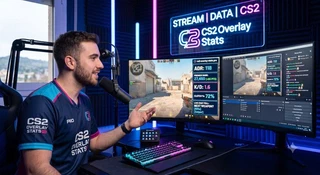
Static overlays are a missed opportunity. Because CS2 relies on heavy tactical metrics, your visual real estate should tell a story. Instead of forcing viewers to guess your current standing or impact, implement dynamic browser-source overlays.
Integrating a lightweight, automated statistical layer that fetches your real-time Premier ranking, ADR, and K/D ratio directly from the game state configuration keeps your broadcast clean, reduces user queries in chat, and elevates your production value to professional tournament standards.
4. Automation and Low-Overhead Utilities
As a streamer, your focus should remain entirely on the match. Manually updating titles, changing scene configurations, or modifying text files mid-round ruins your competitive flow.
- Stream Deck Utilities: Map shortcuts to quickly clip memorable plays, toggle discord mute, or clear chat spam.
- Automated Scene Switching: Use OBS plugins like Advanced Scene Switcher to automatically transition from your “In-Game” scene to a “Just Chatting” layout when a match finishes or when you enter the main menu.
- Cloud-Based Browser Sources: Rely on cloud-hosted overlay assets rather than localized, heavy video loops. This offloads system memory usage, ensuring your CS2 client retains maximum processing priority.
Conclusion: Production Value Drives Growth
Upgrading your stream setup isn’t merely about buying expensive gear; it is about organizing a flawless viewer experience. By optimizing your hardware encoding parameters, ensuring absolute audio clarity, and adopting minimalist, intelligent data overlays, you establish a professional broadcast infrastructure that commands respect.
Let your mechanical skill shine through a crystal-clear feed, and let your statistics speak for themselves.
Ready to upgrade your screen layouts with zero performance impact? Discover how CS2 Overlay Stats delivers clean, automated, real-time data overlays designed specifically for competitive creators.